Pages

Showing posts with label wm. Show all posts

03 March 2024

Axyl, an OS with i3 by default

Last night I discovered Axyl. An operating system based on ARCH linux and focused on window managers. 

It works well with i3, bspwm, dwm, XMonad, Spectrwm and others, but the default one is i3.

I must say that I only tried it live. But it runs fast and it is pretty cool. I have not installed it because I am too lazy to learn ARCH. I tried ARCH once but only for a little while.

Their official website is https://axyl-os.github.io

As a curiosity. It was developed in Republic of the Philippines. But I do not know anything else about it apart from what I read on Wikipedia.


26 June 2018

Screenshot of the week 14

It seems we all have to use ssl in our websites from now on, therefore, I have updated chalsattack.com and blog.chalsattack.com to use https.

At the same time I had to tweak the html code a little bit as well as the the css of the site. It is not a big change, but I love how it looks like in elinks.

Note: The window manager is i3

Enjoy the screenshot of the week :)


10 June 2014

More dual head

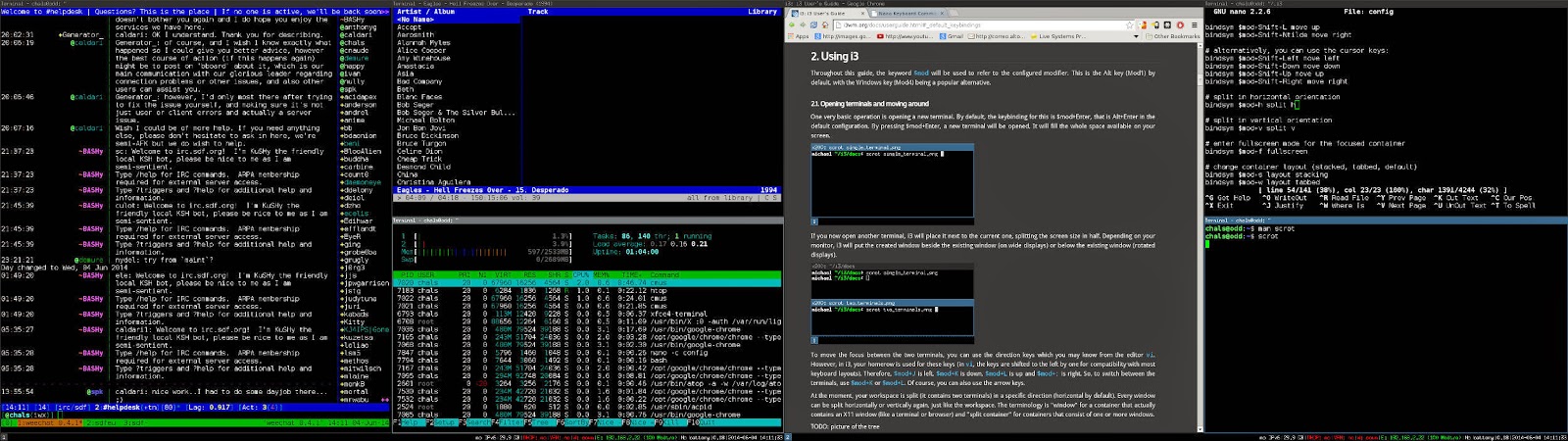
Another picture of my main desktop machine with its dual head. I have been exclusively using i3 for several days now and I think I have finished configuring it to my liking. I have changed the fonts, some of the colours, added several keybindings and what not. One of the things in the todo list was the background picture (which is hardly ever visible since i3 takes charge of the entire space). I spent quite some time until I found this one.

When all windows are closed, the left monitor screen background remains black. For the picture, I opened weechat, cmus and htop (which are some typical applications that I use all the time. Usually, I also have the mc or pcmanfm for file management) and the right screen shows this cute picture. I really like it, in fact I like it so much that I wanted to publish it on my blog right away. I hope you like it too.


04 June 2014

Screenshot of the week 11

Maybe the most awesome window manager I've ever used is i3 and believe me, I have tried many of them over the years. I must admit that I was not really fond of tiling window managers, but this one excels far beyond the other ones I know, such as awesome or spectrwm

Here is a screenshot of my dual head desktop machine:


Note: I have not prepared the window arrangement for the screenshot. I simply opened some of the windows I use on an everyday basis, such as weechat, cmus, htop, a web browser and some terminals. (On a regular desktop environment I would have also opened a file manager, such as pcmanfm). I launched scrot to perform a test screenshot. Much to my surprise, I liked it and I said to myself, well, this is as good as any other.

Almost every tiling window manager has its own long list of features. However...

There are several things that make i3 outstanding. The first one is that it supports multiple monitors out of the box. In my case, my main desktop is a dual head, so it is really great to take advantage of so much space to fill with windows. I just need to use xrandr as I usually do for example for xfce4:

 $ xrandr --output VGA-1 --left-of DVI-I-1

Secondly, the way i3 deals with workspaces is really nice. With one single monitor, there is only one initial workspace, but you can create as many workspaces as you want by simply changing into them. This is to say, if the workspace you change into does not exist it gets created at once. If you have two monitors, there will be two initial workspaces (one per monitor), but you will still be able to create new ones.

You can arrange windows in three different layouts: split, stacked or tabbed. I normally simply split them but the other two layouts are very handy to have your windows in fullscreen.

Another feature that makes i3 out of this world is that you can be productive with it from the very moment you install it. Yeah, sure there is an small learning curve until you learn all the keybindings, but you can also perform many operations with the mouse as if you were using a regular desktop environment. What is more, with just one stroke you can make the windows float and move them around with the mouse.

The fact that the window focus follows the mouse is a bit annoying, I'd rather do it with the keyboard because if you move your mouse involuntarily into a window, you might find yourself typing passwords on the irc channel. Such is life, I know... but still embarrassing :-p

But there is a configuration option for that (the config file can be found at either .i3/config or .config/i3/config)

#  focus_follows_mouse <yes|no>
focus_follows_mouse no

Want more? i3 is faster than fast. In my dual head desktop, an old P4 machine, i3 loads in just 3 seconds. Yeah i3 loads in 3s. Ain't that really impressive?

Another thing I like is that you can load any applications you want at startup. You only have to use the exec command in your config file like this:

exec chromium
exec i3-sensible-terminal
exec dropbox start
exec gmail-notify

The config file is the right place to create your own keybindings. The documentation gives an example of how to use a key combination to take a screenshot. Using the example as a reference I have added a shortcut for the sound mixer:

# Open sound mixer
bindsym --release $mod+m exec alsamixergui

Imagine that you would like to have the mixer in all the workspaces. That is easy to achieve. One of the nicest features of i3 is the scratchpad. It is a window that you can have in all the workspaces by simply pressing a key. From the documentation:

# Make the currently focused window a scratchpad
bindsym $mod+Shift+minus move scratchpad

# Show the first scratchpad window
bindsym $mod+minus scratchpad show

It could also be useful for your notes, your text editor, your irc program...

Then $mod+c reloads the config file. Or alternatively $mod+Shift+r restarts i3 inplace

I could certainly go on and on. I think I will continue adding some more info as I discover new tricks. By the way, just as a curiosity. I had installed i3 a while ago but I had never really got very much into it until now. However, I remember using wmii and enjoying it. I even wrote a blog post here

At this very moment I'm reading the i3 user's guide trying to find super "kewl" things to try. I have already learnt by heart most keybindings. I especially like the $mod+f to toggle fullscreen mode. One thing that I do not understand is why the heck (on my stable machines) $mod+h splits the window vertically and  $mod+v splits windows horizontally. Both the config file and the user's guide say that $mod+h should split horizontally and $mod+v should split vertically. However they work the other way round, unless I'm going out of my head and horizontal and vertical do not mean horizontal and vertical respectively ;)

Update: It seems to work correctly on my sid machine. It might have been a bug.

I have installed i3 on almost all my machines (even on my tiny eeepc 701) and of course I'm writing this post using it. I hope you like it   ;)

05 February 2012

Minimal desktop.

This weekend I have been configuring a rather small, relatively minimal desktop using openbox. I have also installed a bunch of applications to work with this gorgeous window manager. Among them: gmrun, wbar, tint2, conky ... I have also set Midori as default browser. In my first tests I installed rox-filer, but since I intend to thoroughly try rox desktop someday I removed rox-filer and I left the good old midnight commander as file manager.

I need to remember (for future reference):
  • Openbox: create .config/openbox/autostart file (nm-applet and all other apps. Launch wbar -pos < top >)
  • Edit wbar /usr/share/wbar/dot.wbar (icons and commands)
  • gmrun: Edit openbox keybindings in .config/openbox/rc.xml

     <keybind key="A-F2">
        <action name="Execute">
        <command>gmrun</command>
         </action>
      </keybind>
    
Here is a screenshot for you to sneak a peek (Screenshot taken with scrot):


27 November 2011

On why has Gnome lost its way.

This blog post is just a personal opinion. I DO respect the work of the Gnome developers. I think they do an impressive job. To prove that, you can read my first review of Gnome 3
I started using linux in 2005. My first distro was SuSE which used KDE by default. After that I have always used Debian which uses Gnome by default. I would be lying to you if I said that I liked Gnome right away. But discovering Debian was 100% love at first sight. I thought that if Debian had chosen Gnome, then that was the right thing to do. I became a gnome man
Getting used to using GNU/linux was not easy at first, and as if that was not enough once I had learnt to use KDE I had to learn how to use Gnome, but I did not care, I just wanted to do things the Debian way.
I remember I used to make a “poor man, rich man” comparison between the two desktops. KDE was the rich man with lots of Kapplications and ease of use.Gnome was the poor man, it came with less applications and if you wanted to have a full multimedia desktop you had to visit your repositories on a daily basis. There was a bunch of gapplications but they were scattered across the net.
But that was not for the worst part of the story. The poor man started getting rich (=bloat) little by little but it was highly configurable at the same time. But that was just some years ago. The developers considered that giving too many options to users was not the right thing to do and they stripped Gnome from many configuration options. That was the end of the Gnome 2 desktop as we know it. I still can't understand the reasons for that. And I think that is where the gnome lost its way: Someone confused simplicity with usability.
I know from experience that keeping things simple is important. The kiss principle which I try to follow whenever I can. However, it mustn't be confused with the idea that “Hiding options will make the software easier to use” I think that it is rather on the contrary. It took me a lot of google time to learn how to turn the location inNautilus (2.30.1) into text (Ctrl + l) It might not seem important but sometimes it is. For example to paste it into the terminal. And so on and so forth.
Let's focus on Gnome 3 now. I mainly use relatively new nvidia cards which are 3D graphics capable. However my unstable (virtualized) and testing (real hardware) machines run into fallback mode. This means an important percentage of usability loss in your desktop. For instance the bottom panel remains there but it has no use at all and what is worse, you can't even delete it. See what I mean?
What? You’re thinking that sure there is a workaround for most things, that unstable and testing are mere transitory stages and that everything will be solved on time? and I do not know how many other real truths. Yes. I agree with you entirely, but man I am a really busy person. I do need an usable desktop. Can't be constantly searching the net to tweak the simplest of options...
But as I was telling you before. I do not blame anyone for this situation. I'll be the first to install Gnome 3 when it is usable again. But for the time being bye byeGnome 3, howdy Xfce 4.
(By the way I had to spend a lot of time to learn how to set the time in Xfce 4. I ended up reconfiguring tzdata to achieve that. ahem ahem)
I will never understand why you need to be root to set your computer time. Please, do not argue “security issues” Did setting the time ever hurt anyone?

20 September 2011

Screenshot of the week 2 (wmii)

This is definitely not the best screenshot I could take. Maybe it was done in a hurry and the results are not out of the ordinary but with a bit of imagination it will do the trick.

This screenshot features one of the best tiling window managers I know: wmii I have just recently started to use it and I must admit it is far superior to other tiling applications. In order to learn about all its features and to see better screenshots, please visit the official website.

In the picture you can see htop (system monitor), mc (file manager) and scrot (screenshot application)

Using wmii:

Most window management is done using the keyboard, even though you can use the mouse as well to point and resize windows.

As usual most keystrokes are mnemonic: Alt+p = programs, Alt+s = stack mode, Alt +d = default and so on

One of the things I like the most about wmii is that you can start a terminal or as many terminals as you need by simply pressing Alt+Return. Really handy and straightforward.